How to use a Bluetooth OBD2 scanner with an Android phone

Use a Bluetooth OBD2 scanner by plugging it into the OBD2 port, pairing it in Android Bluetooth settings when needed, opening a compatible app, and reading codes with the ignition on. Many adapters need Classic Bluetooth rather than Bluetooth LE. If you skip a step, you can waste time, miss stored fault codes, or blame the car for a pairing problem. This guide shows the exact connect-and-diagnose workflow on Android, then walks through the common setup failures and fixes.
What you’ll need
- A Bluetooth OBD2 adapter that plugs into the car’s 16-pin OBD2 port under the dash
- An Android phone with Bluetooth enabled
- A compatible app such as Torque Pro, BlueDriver, or another app made for your adapter type
- A vehicle that has OBD2 support, usually 1996 and newer in the U.S. and Canada
- The ignition in the ON position or engine running, depending on the app and vehicle
📊 For Apple devices, see Apple’s Bluetooth profile support page for iPhone 5s and later. Source: Apple.
How to use a Bluetooth OBD2 scanner with your Android phone
Start with the adapter in the car, the ignition on, and the app ready to connect. On Android, pairing usually creates only the device link; the app still has to communicate with the adapter and then the ECU. Once that chain works, you can read diagnostic trouble codes, view live data, and clear codes after you save them.
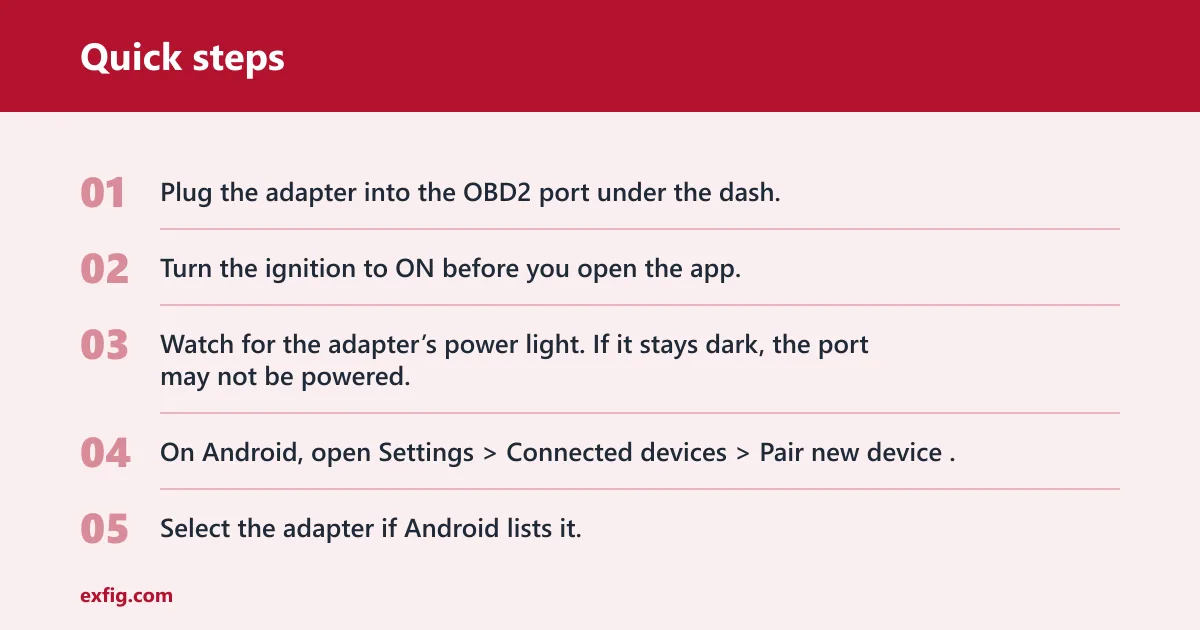
- Plug the adapter into the OBD2 port under the dash.
- Turn the ignition to ON before you open the app.
- Watch for the adapter’s power light. If it stays dark, the port may not be powered.
- On Android, open Settings > Connected devices > Pair new device.
- Select the adapter if Android lists it. Some Bluetooth Classic adapters pair here; BLE tools may connect only inside the app.
- Open the OBD app and go to its connection settings.
- Choose the adapter name, then start the connection to the vehicle.
- Read codes first, then view live data, and clear codes only after you write them down.
What the adapter does
The adapter sits in the 16-pin OBD2 port and translates vehicle data into a phone-readable connection. ELM327-style adapters are common, and many third-party apps support them. OBDLink MX+ is a higher-end Bluetooth OBD2 scanner with live data features. BlueDriver is a dedicated app experience and works with its own scanner and app.
What Android needs to connect
Some adapters pair in Android Bluetooth settings first. Others, especially BLE models, connect inside the app without a standard pairing step. Android also needs Bluetooth permission, nearby device access on newer versions, and sometimes location permission depending on the app and Android version. If the app cannot scan, battery optimization can also block background connection activity.
What you can read once it works
Once the app reaches the ECU, you can usually read stored and pending codes, see live sensor data, and clear codes. Torque Pro is a common Android-based app for third-party setups. BlueDriver uses its own app. Many apps add graphs, freeze-frame data, or readiness monitors, but the basic workflow stays the same: connect, read, then decide whether to clear. Clearing codes also resets readiness monitors, which can affect emissions inspection readiness.
Which app should you use?
Pick the app based on the adapter, not the other way around. Torque Pro fits many Android-only or Android-first setups with ELM327-style adapters. BlueDriver makes more sense if you want a dedicated app tied to that scanner. OBDLink MX+ is a better choice if you want live data and to switch among compatible apps.
Torque Pro and other third-party apps
Use a third-party app when the adapter is meant to work with multiple tools. Torque Pro is Android-based, and many ELM327 adapters are marketed for that kind of setup. This path is often cheaper, but cheap clones can be flaky. If the app sees the adapter yet still cannot reach the ECU, try another app before assuming the car is the problem.
BlueDriver for a dedicated app
Choose BlueDriver when you want a scanner-app bundle with a simpler setup path. It uses its own app, and Walmart lists BlueDriver Pro for iPhone and Android. Dedicated apps can cut down on guesswork because the scanner and software are designed together, which matters when you want fewer pairing variables.
When OBDLink MX+ makes sense
OBDLink MX+ is the better fit when you want a higher-end scanner with broad app options and live data access. OBDadvisor lists OBDLink MX+ for third-party apps and live data. That matters if you want to switch among apps or compare data with more than one Android tool.
How do you pair it with Android?
Pairing is only one step, and not every adapter needs it the same way. Bluetooth Classic adapters often appear in Android’s Bluetooth menu, while BLE adapters may skip that menu and connect inside the app. The full workflow is always: plug in, power on, pair if needed, then connect in the app.
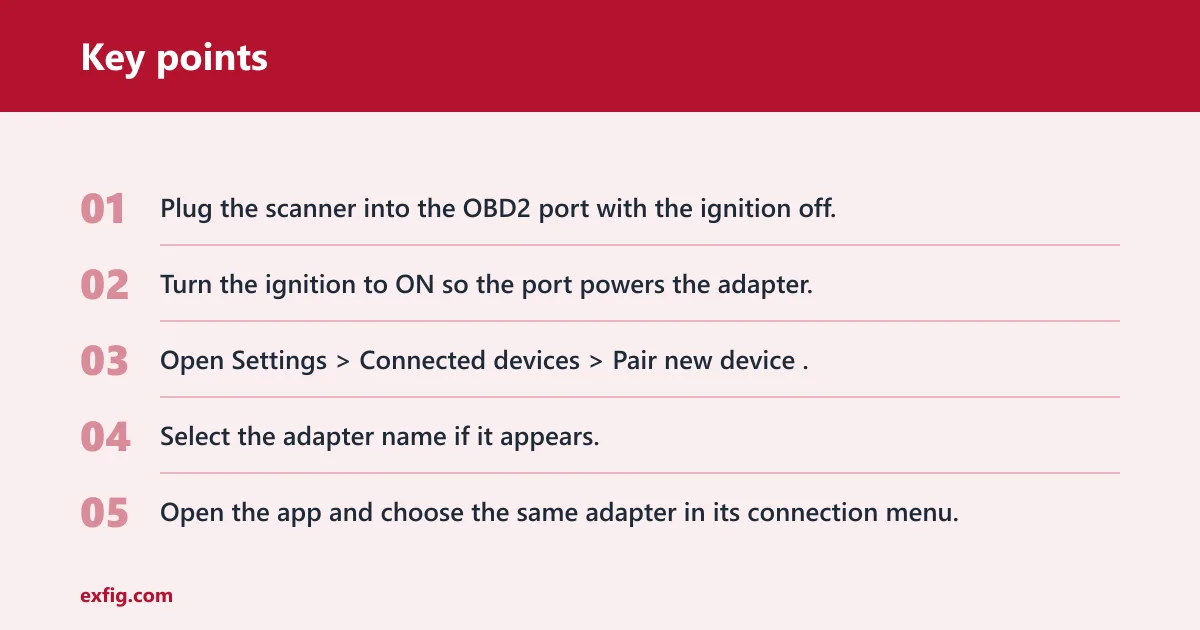
- Plug the scanner into the OBD2 port with the ignition off.
- Turn the ignition to ON so the port powers the adapter.
- Open Settings > Connected devices > Pair new device.
- Select the adapter name if it appears.
- Open the app and choose the same adapter in its connection menu.
- If the app offers a protocol or adapter type choice, match it to Bluetooth Classic or BLE.
- Wait for the ECU connection screen before reading codes.
Bluetooth Classic versus BLE
Bluetooth Classic is common on older and cheaper adapters, especially many ELM327 clones. Bluetooth Low Energy, or BLE, is common in newer adapters and can improve compatibility. The same source says many modern tools use BLE. That matters because some Android phones handle BLE well in-app, while older tools still expect a Classic Bluetooth pairing flow.
What permissions to check
If Android finds the adapter but the app cannot use it, check permissions first. Go to Settings > Apps > [your OBD app] > Permissions and allow Bluetooth, nearby devices, and location if the app asks for it. Then open Settings > Battery > Battery optimization and turn off optimization for the app if connection drops in the background.
How do you read codes and live data?
Once the app connects to the ECU, the rest is straightforward. Read codes before you clear anything, because clearing first removes the evidence. Live data can help separate a scanner issue from a vehicle issue, especially if the adapter connects but the ECU times out or returns no data.
- Open the app and connect to the adapter.
- Choose Read codes or Scan.
- Save the code list or take notes before clearing.
- Open Live data to view sensor values.
- Clear codes only after you confirm the repair or want to reset the light for a check.
- If live data loads but codes do not, check the app’s vehicle profile settings.
Say your phone pairs with the scanner but the app shows no ECU connection. That usually means the adapter link is working and the vehicle link is not. The next step is to check ignition power, app permissions, and whether the adapter type matches the app’s connection method.
Suppose the scanner starts up, the app connects, and then the link drops right after engine start. That often points to battery optimization, weak adapter power, or a clone that cannot stay stable under voltage change. Try the same setup with ignition on and engine off first, then retry with the engine running.
Bluetooth OBD2 checklist
| Symptom | Most likely cause | Fix | Side |
|---|---|---|---|
| No LED power | Port has no power or ignition is off | Turn the ignition to ON and recheck the adapter light | Car-side |
| No pairing in Android | BLE adapter or pairing not required in Bluetooth settings | Open the app and connect there instead of using Android pairing | Adapter-side |
| Paired but no data | Wrong app or the app cannot talk to that adapter | Switch to a compatible app such as Torque Pro or the maker’s app | Phone-side |
| App sees adapter but not ECU | Protocol mismatch or vehicle communication problem | Check ignition, vehicle profile, and protocol settings in the app | Car-side |
| Connection drops after start-up | Battery optimization or unstable clone behavior | Set battery optimization to off for the app and retry with engine off first | Phone-side |
| Adapter appears then disappears | Cheap ELM327 clone instability | Try a different app or a better-quality adapter | Adapter-side |
| Android cannot find the device | Bluetooth off, permissions blocked, or BLE/classic mismatch | Turn on Bluetooth and allow nearby device permission in Android | Phone-side |
| App asks for location and fails without it | Android discovery permission blocked | Enable location permission for the app and rescan | Phone-side |
| Power light on, no scan response | Ignition not in ON or vehicle protocol unsupported | Cycle ignition to ON and confirm the car is OBD2-compliant | Car-side |
| Works in one app but not another | Third-party app support differs by adapter | Use the app recommended for that adapter or switch to a dedicated scanner app | Phone-side |
| Slow or partial live data | Adapter quality limits data rate | Use a higher-end scanner such as OBDLink MX+ for better live data support | Adapter-side |
| Scanner works on one car but not another | Vehicle protocol or port power differs | Check OBD2 support for both vehicles and test the port with ignition on | Car-side |
Common mistakes
Pairing in Android before the ignition is on is a common miss. So is installing the wrong app for the adapter type. Bluetooth pairing and app connection are different steps, and many users stop too early.
A cheap ELM327 clone may pair normally and still fail at data transfer. That is why a working Bluetooth menu entry does not prove the setup is good. If the app cannot connect to the ECU, test another compatible app before blaming the vehicle.
Many 1996 and newer vehicles are OBD2-compliant, but that does not guarantee every scanner will work. Most 1996 and newer U.S. vehicles use standardized OBD2 protocols, and the adapter still has to support the vehicle and the app has to support the adapter.
If that didn’t work, try this next
Open Settings > Apps > [OBD app] > Battery and disable optimization if the link drops. If that fails, uninstall the app, reinstall it, and pair again. If the scanner still will not connect, test the adapter on another compatible Android app or replace the clone with a known better unit.
Keep the adapter in the same port, use the same app profile, and leave Bluetooth permissions on. That cuts repeat setup errors and makes later scans faster.
Frequently asked questions
How do I use a Bluetooth OBD2 scanner with my Android phone?
Plug it into the OBD2 port, turn the ignition to ON, pair it in Settings > Connected devices if the adapter uses Bluetooth Classic, and open a compatible app. Then select the adapter inside the app and connect to the ECU before reading codes or live data.
Why won’t my Bluetooth OBD2 scanner connect to Android?
The usual causes are wrong app choice, blocked permissions, battery optimization, or a Bluetooth type mismatch. Start in Settings > Apps > [app] > Permissions, then check whether the adapter needs Android pairing or in-app BLE connection. A clone adapter can also fail after pairing.
Do I need a special app for a Bluetooth OBD2 scanner on Android?
Yes, you need an app that supports the adapter type. Torque Pro is a common Android-based option for many third-party adapters. Dedicated scanners such as BlueDriver use their own app. Open the app’s connection menu first; Android pairing alone is not enough.
What is the best Bluetooth OBD2 app for Android?
There is no single best choice for every adapter. Torque Pro is a practical pick for many third-party Android setups, while BlueDriver suits a dedicated scanner-app setup. If you want better live data support across apps, OBDLink MX+ is the stronger hardware choice.
Will a cheap ELM327 Bluetooth adapter work with Android?
Sometimes, but not reliably. Cheap ELM327 clones may pair, fail to pass data, or drop connection during startup. If that happens, try a different app first, then a better adapter. A clone that works on one phone may still fail on another Android device.
What should I check if the app says no connection to the ECU?
Check ignition power, the adapter light, app permissions, and the connection method in the app. If the app sees the adapter but not the ECU, the issue is often protocol support or a bad clone. Try Settings > Battery > Battery optimization next, then retest with the engine off.
Can I use a Bluetooth OBD2 scanner with any Android phone?
No. Android support depends on the phone’s Bluetooth stack, the app, and the adapter type. BLE often works well on newer phones, while Bluetooth Classic remains common for older ELM327-style adapters. Compatibility is phone-plus-app-plus-adapter, not phone alone.